Understanding workflow and task assignment
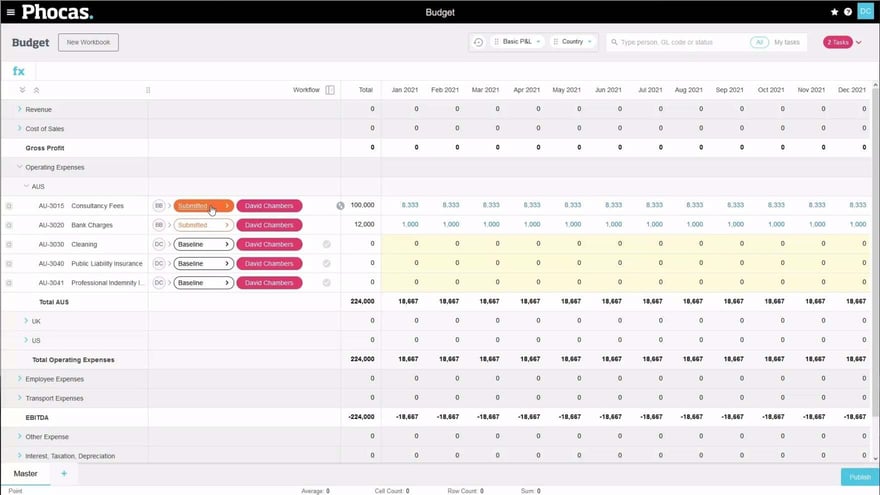
Learn how workflow lets budget owners delegate rows to other users while keeping one version of the truth, since only one person can edit a row at any time. You'll also learn how to read the workflow column, including the predecessor identifier, status button, and reference column, and how to collapse it.
Supporting documentation

Related video tutorials
 Budgets & Forecasts
Manage the workflow
Learn how to assign rows to contributors individually or in bulk, review submitted work, and accept or reject it with comments. You'll also learn how to mark rows complete, how administrators can self assign or step in, and how to revert a row to baseline, which can't be undone.
 Budgets & Forecasts
Access the budget and your tasks
Learn how to find the budget or forecast rows that an administrator or owner has assigned to you. If email notifications are enabled, you receive a message with a link to sign in to Phocas, and you can then open the worksheet, check your task count, and select an assigned section to begin working.
 Budgets & Forecasts
Edit values in a worksheet
Learn how to work in the yellow rows assigned to you, spreading a total across the period or basing values on other data, such as increasing last year's actuals by five percent. You can add comments and links to cells so your team can collaborate, then submit a finished section through the workflow so the owner can approve it.
 Budgets & Forecasts
Contribute to the workflow
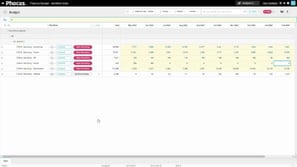
Learn how to find the tasks assigned to you from your home page or the tasks button, then enter values in your editable rows. You can assign a row to another user to get their input, submit several tasks at once, review and accept or reject returned work, and unsubmit a task to make changes.