How to handle key variables, such as currency, in the budget
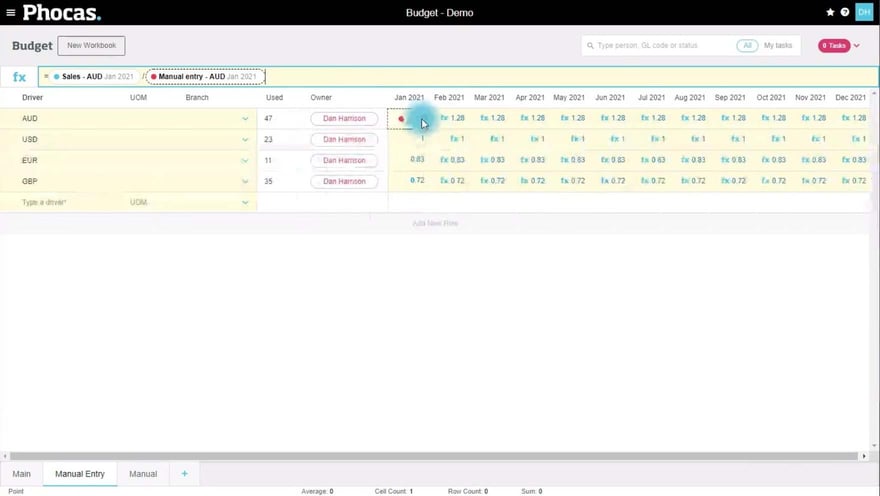
Learn how to cater for multiple currencies in a budget created in one base currency by adding a manual entry driver tab for key variables such as exchange rates. You'll then use working lines to convert local currency values back to that base currency and search for everywhere a currency is referenced.
Supporting documentation

Related video tutorials
 Financial Statements
Create a budget from within financial statements
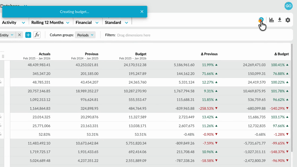
Learn how to create a profit and loss budget directly from your financial statement with one click budgeting, available with the Budgets and Forecasts module. You'll set up the statement levels, create the budget, and open a workbook that reflects your setup, which cuts setup time and keeps both modules aligned.
 Budgets & Forecasts
Add detail to your budget
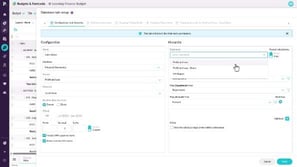
Learn how to add detail when changing the budget setup isn't practical, by adding database or balance sheet tabs and new rows on the main tab. You'll see how a database tab drives values into the main tab, how a balance sheet tab adds a cash flow tab for a three statement model, and how to add accounts or entities.
 Budgets & Forecasts
Set up comparison rows
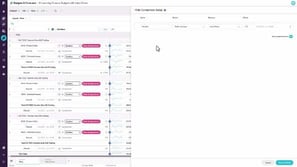
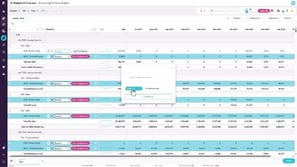
Learn how to configure comparison rows that appear beneath each budget row, starting from the default of last year's actuals. You'll change the stream, measure, and offset, add more comparison rows, apply custom formatting, and see how contributors can show or hide them while variance percentages update as they edit.
 Budgets & Forecasts
Manage the workflow
Learn how to assign rows to contributors individually or in bulk, review submitted work, and accept or reject it with comments. You'll also learn how to mark rows complete, how administrators can self assign or step in, and how to revert a row to baseline, which can't be undone.