Use workflows to collaborate
5 videos in this learning module
5 videos in this learning module
Understanding workflow and task assignment
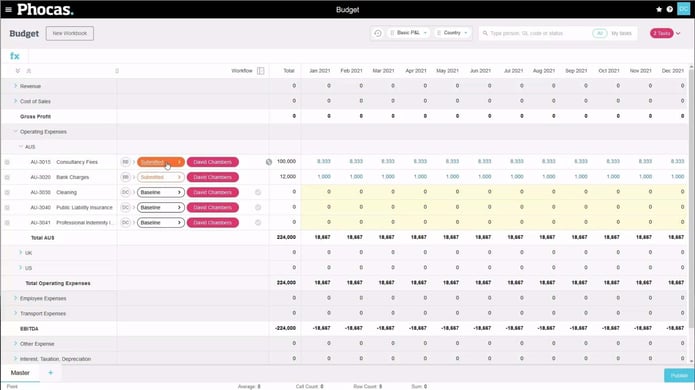
Learn how workflow lets budget owners delegate rows to other users while keeping one version of the truth, since only one person can edit a row at any time. You'll also learn how to read the workflow column, including the predecessor identifier, status button, and reference column, and how to collapse it.
Supporting documentation
Contribute to the workflow
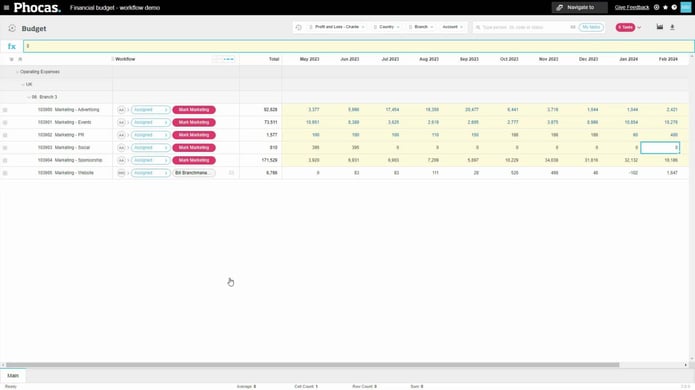
Learn how to find the tasks assigned to you from your home page or the tasks button, then enter values in your editable rows. You can assign a row to another user to get their input, submit several tasks at once, review and accept or reject returned work, and unsubmit a task to make changes.
Supporting documentation
Delegate a budget line to another user
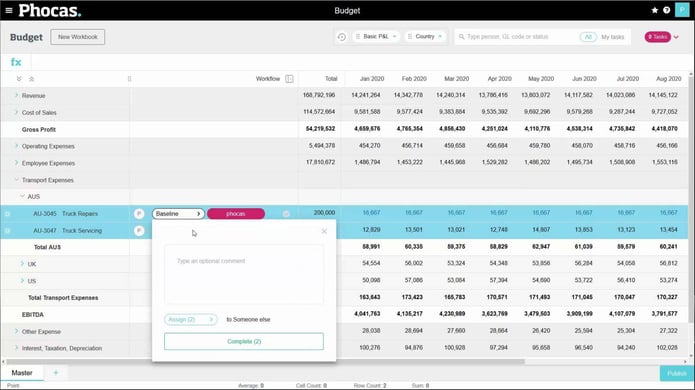
Learn how to assign budget rows to other users as tasks, one at a time or several at once, so they can enter the values. You'll also see how to review submitted tasks using workflow history and comments, then accept, reject, or mark rows complete so you can track progress at a glance.
Supporting documentation
Manage the workflow
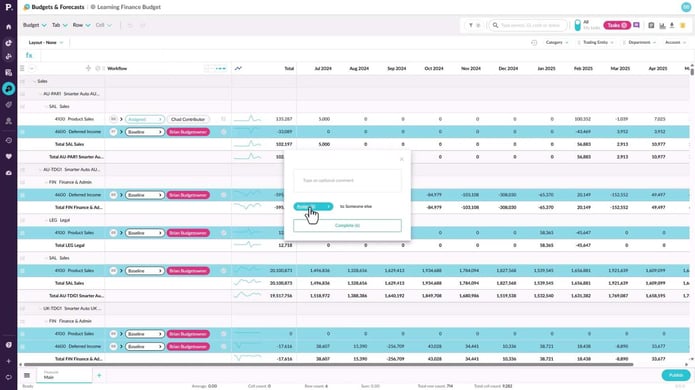
Learn how to assign rows to contributors individually or in bulk, review submitted work, and accept or reject it with comments. You'll also learn how to mark rows complete, how administrators can self assign or step in, and how to revert a row to baseline, which can't be undone.
Supporting documentation
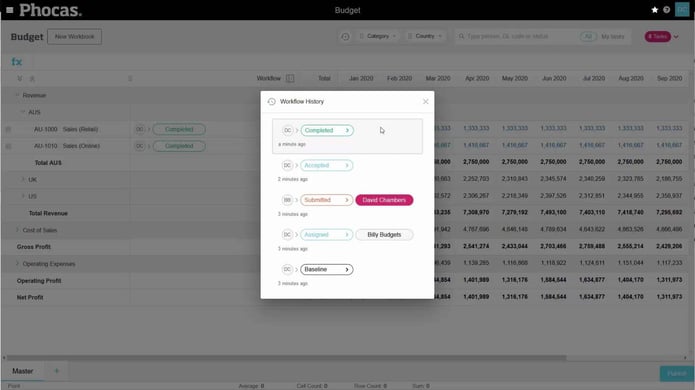
Workflow history
Learn how to trace who worked on a budget row and what changed in a cell by using the workflow history and cell history. You'll also see how row and cell comments let you explain values, share links, and collaborate, giving budget owners a full audit trail of the budget or forecast.
Supporting documentation

Related learning modules
 Budgets & Forecasts
Get started with Budgets & Forecasts
 Budgets & Forecasts
Manage budgets and forecasts
 Budgets & Forecasts