Work with budget data
5 videos in this learning module
5 videos in this learning module
Edit values in a worksheet
Learn how to work in the yellow rows assigned to you, spreading a total across the period or basing values on other data, such as increasing last year's actuals by five percent. You can add comments and links to cells so your team can collaborate, then submit a finished section through the workflow so the owner can approve it.
Supporting documentation
Use formulas
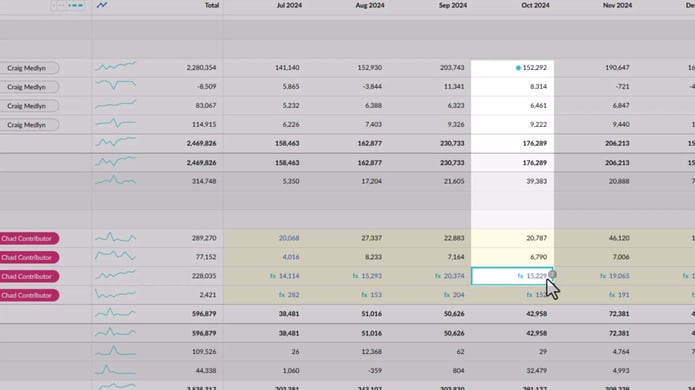
Learn how to build calculations by typing an equals sign in a cell or the formula bar. You can reference cells in the same row, the comparison row, or another worksheet, use standard functions, copy a formula forward, and lock a reference with the F4 key, for example to base technology costs on a percentage of salary.
Supporting documentation
Use sum and working lines
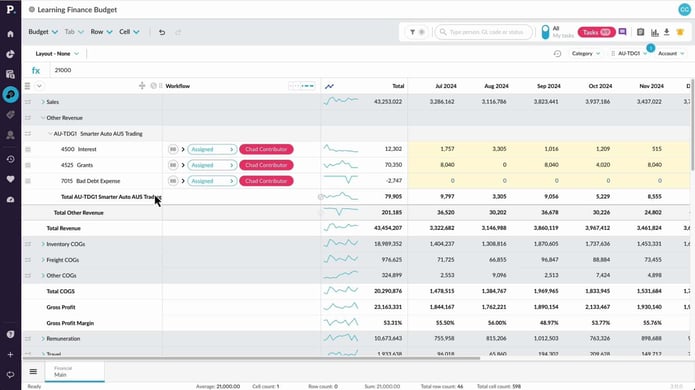
Learn how to add sum lines to break a budget row into detail, such as office supply costs by building, and how to fill months with copy forward or spread evenly. You'll also learn how to add a working line that calculates bad debts as a percentage of sales revenue using an Excel-style formula.
Supporting documentation
Use comparison rows
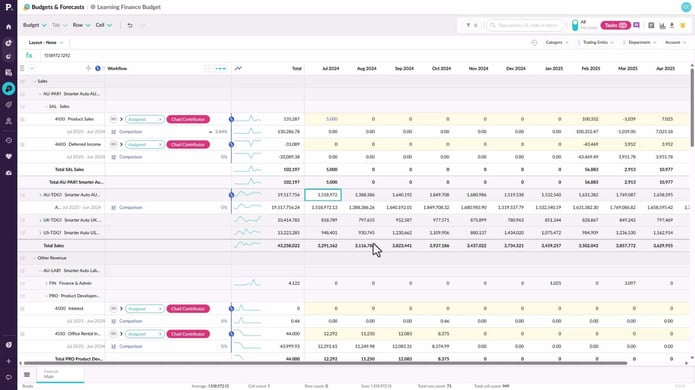
Learn how to show comparison rows that display values from another stream, such as last year's actuals, along with the percentage difference as you adjust your budget. You'll also learn several ways to show or hide them, and, if you have access to financial data, how to view the transactions behind a cell's value from the cell menu.
Supporting documentation
Spread totals
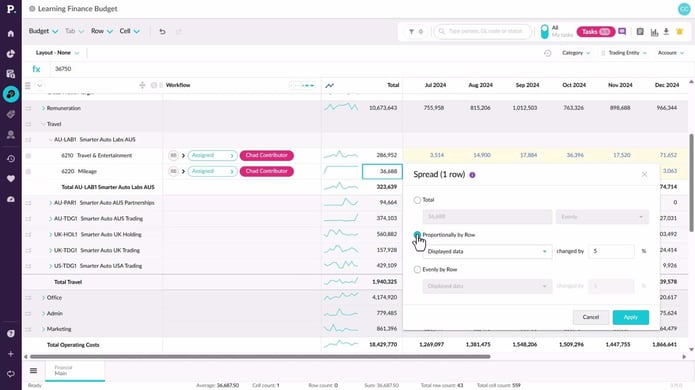
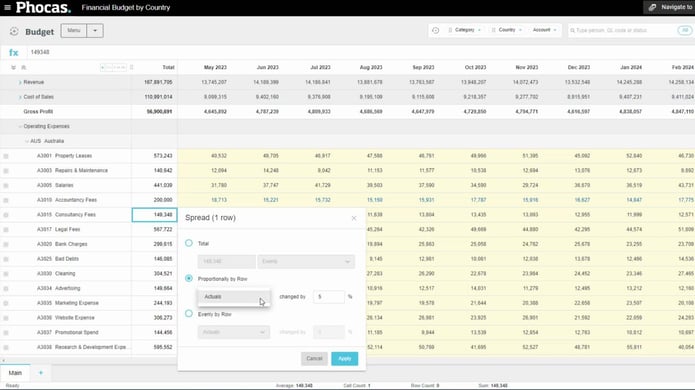
Learn how to use the spread options to distribute a total across the budget period, either evenly or in proportion to a comparison stream such as last year's actuals. You'll also learn how to apply a percentage change by row and how to spread totals over multiple rows or higher-level totals at once.
Supporting documentation

Related learning modules
 Budgets & Forecasts
Get started with Budgets & Forecasts
 Budgets & Forecasts
Manage budgets and forecasts
 Budgets & Forecasts